
How to Use a VPN on Android Step by Step Guide
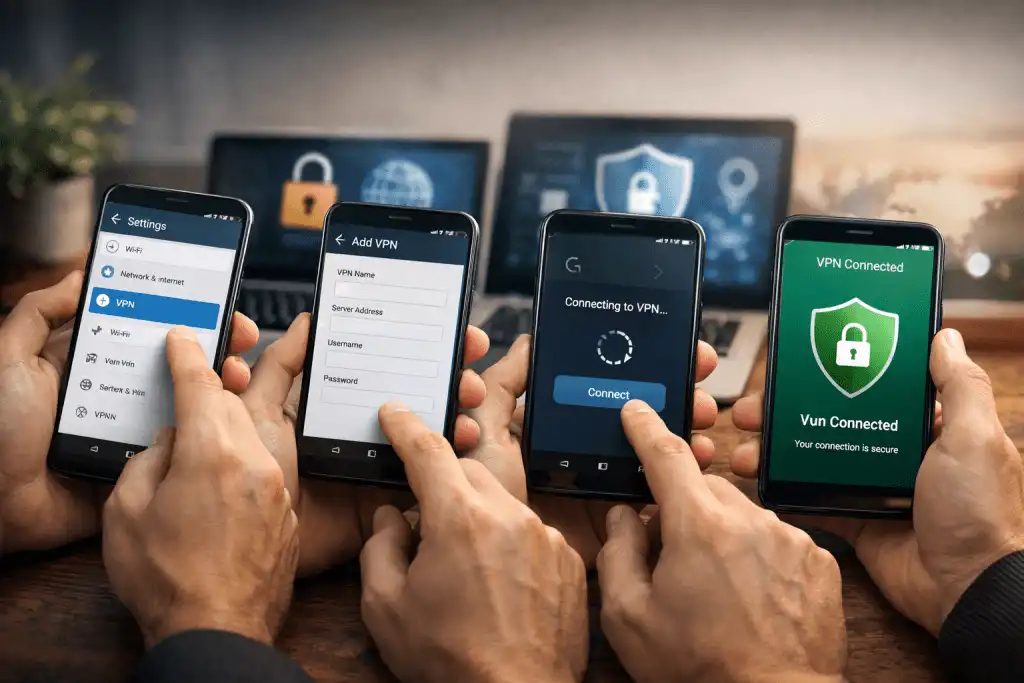
Using a VPN on your Android device is one of the simplest ways to improve privacy, secure public Wi-Fi connections, and access geo-restricted content. If you are searching for How to Use a VPN on Android, the process is straightforward and can be completed in just a few minutes. Android supports both third-party VPN apps and manual VPN configuration through built-in settings. This guide explains every step clearly so you can set up and use a VPN correctly.
A Virtual Private Network (VPN) encrypts your internet traffic and routes it through a secure server in another location. This protects your data from hackers, internet service providers, and other third parties. Understanding how to configure it properly ensures your connection remains stable and secure.
What You Need Before Setting Up a VPN on Android
Before learning How to Use a VPN on Android, make sure you have the necessary components. First, you need a reliable VPN provider. Most users choose a dedicated VPN app from the Google Play Store, while advanced users may configure it manually using server details provided by a company or organization.
Ensure your Android device is updated to a recent version of the operating system. Modern Android versions have built-in VPN support and improved security protocols. An active internet connection is required to download apps or complete manual configuration.
You should also decide your purpose for using a VPN. Some users prioritize privacy and security, while others want to bypass geo-restrictions or protect themselves on public Wi-Fi. Knowing your objective helps you select the appropriate server location and settings.
Method 1: Using a VPN App from the Google Play Store
The easiest way to understand How to Use a VPN on Android is through a VPN application. This method requires minimal technical knowledge and is suitable for most users.
First, open the Google Play Store and search for a reputable VPN provider. Download and install the app. After installation, open the app and create an account or log in with existing credentials.
Next, grant the necessary permissions. Android will display a system message asking you to approve the VPN connection. Tap “OK” to allow the app to create a secure tunnel on your device.
After approval, choose a server location. Most apps provide a list of countries or offer an automatic “best server” option. Tap the connect button and wait a few seconds until the connection status changes to “Connected.”
Once connected, you will see a small key icon or VPN symbol in the status bar at the top of your screen. This indicates that your internet traffic is now encrypted and routed through the VPN server. To disconnect, return to the app and tap the disconnect button.
Method 2: Manual VPN Setup Through Android Settings
If you prefer more control, you can manually configure a VPN. This approach is common for corporate networks or private VPN servers. It also helps you better understand How to Use a VPN on Android without relying on third-party apps.
Go to Settings on your Android device. Navigate to “Network & Internet,” then tap “VPN.” On some devices, this option may appear under “Connections.”
Tap the “Add VPN” button. You will need to enter several details, including the VPN name, server address, VPN type, and login credentials. These details must be provided by your VPN service or network administrator.
Choose the correct protocol, such as PPTP, L2TP/IPSec, or IKEv2/IPSec, depending on what your provider supports. Enter your username and password, then save the configuration.
To connect, tap the VPN profile you just created and enter your credentials if prompted. Once connected, the VPN icon will appear in the status bar. To disconnect, return to the VPN settings and tap the active connection.
Manual configuration offers flexibility but requires accurate server information. If the details are incorrect, the connection will fail.
How to Manage and Optimize Your VPN Connection
After learning How to Use a VPN on Android, proper management ensures optimal performance and security. One important feature is the kill switch, available in many VPN apps. This feature blocks internet traffic if the VPN connection drops unexpectedly.
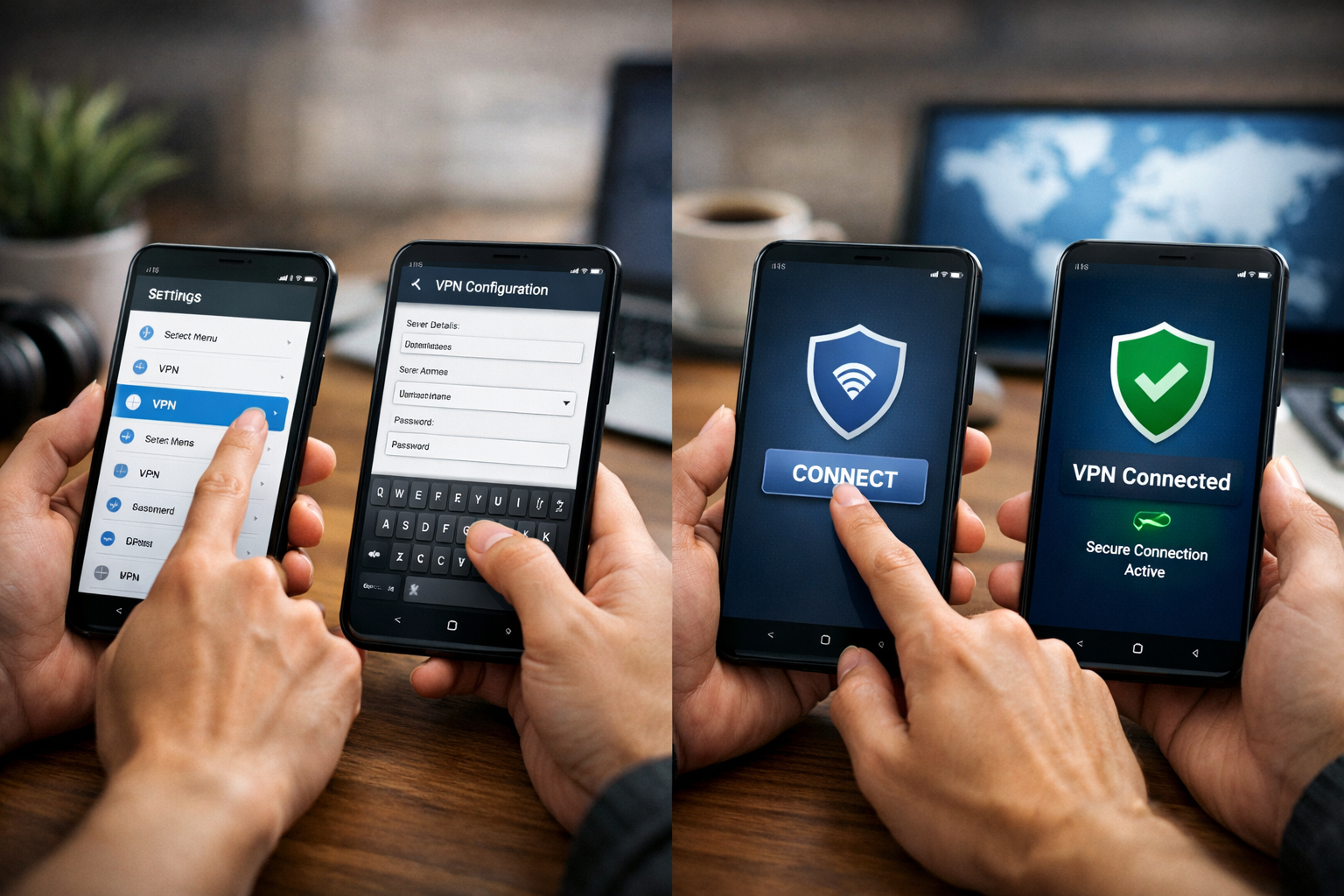
You can also enable “Always-on VPN” in Android settings. This ensures your device remains connected to the VPN at all times. To activate it, go to Settings > Network & Internet > VPN, tap the gear icon next to your VPN, and enable “Always-on VPN.”
Switching server locations may improve speed. If your connection feels slow, select a server geographically closer to your physical location. Encryption adds slight overhead, but choosing a nearby server usually reduces latency.
Regularly update your VPN app to ensure compatibility with Android security updates. Updated apps often include improved encryption standards and bug fixes.
Common Issues and Troubleshooting
Even after understanding How to Use a VPN on Android, users may encounter occasional problems. The most common issue is connection failure. This often results from incorrect login credentials or server information.
If the VPN connects but internet access stops working, disconnect and reconnect. Restarting your device can also resolve temporary network conflicts. Switching between Wi-Fi and mobile data may help diagnose network-specific problems.
Slow speeds are another common complaint. This can occur if the selected server is overloaded. Choose a different server or protocol within the app settings.
If apps or websites block VPN traffic, try changing servers or disabling features like split tunneling. Some services detect and restrict VPN connections for licensing or security reasons.
Security and Privacy Considerations
Using a VPN increases privacy but does not guarantee total anonymity. The VPN provider can potentially see your traffic, so selecting a trustworthy provider is critical.
Look for services that use strong encryption standards such as AES-256 and secure protocols like OpenVPN or WireGuard. Avoid free VPNs with unclear privacy policies, as some may log or sell user data.
Remember that a VPN does not protect against malware. Continue using antivirus software and practice safe browsing habits. Combining VPN usage with general cybersecurity awareness provides the best protection.
Conclusion
Understanding How to Use a VPN on Android is simple once you know the available methods. You can install a VPN app for convenience or configure it manually through Android settings for greater control. By following proper setup steps and managing connection settings wisely, you can improve privacy, enhance security on public networks, and maintain safer internet access on your Android device.
FAQ
Q: Do I need technical knowledge to use a VPN on Android? A: No. Most VPN apps are designed for beginners and require only installation, login, and tapping a connect button.
Q: Is using a VPN on Android legal? A: In most countries, VPN use is legal, but certain regions restrict or regulate it. Always check local laws before using a VPN.
Q: Will a VPN slow down my Android internet speed? A: A VPN may slightly reduce speed due to encryption, but choosing a nearby server usually minimizes performance impact.
Q: Can I use a free VPN on Android? A: You can, but free VPNs often have data limits, slower speeds, and weaker privacy protections compared to paid services.
Q: How do I know if my VPN is connected on Android? A: A key or VPN icon appears in the status bar, and the VPN app will display a “Connected” status.
